Adaptive Brightness Limiters (ABL)
ABLs are annoying
Adaptive brightness limiters, or ABLs for short, are commonly found on OLED monitors - mostly W-OLED monitors, but some QD-OLEDs have them too. This manifests as a peak in brightness, followed by a drop in brightness over time. Some monitors don’t change light level much, some change a lot. You can see below just how much the light level can change - from a peak at ~65000, to just ~40000, or a 38% reduction in absolute light level. 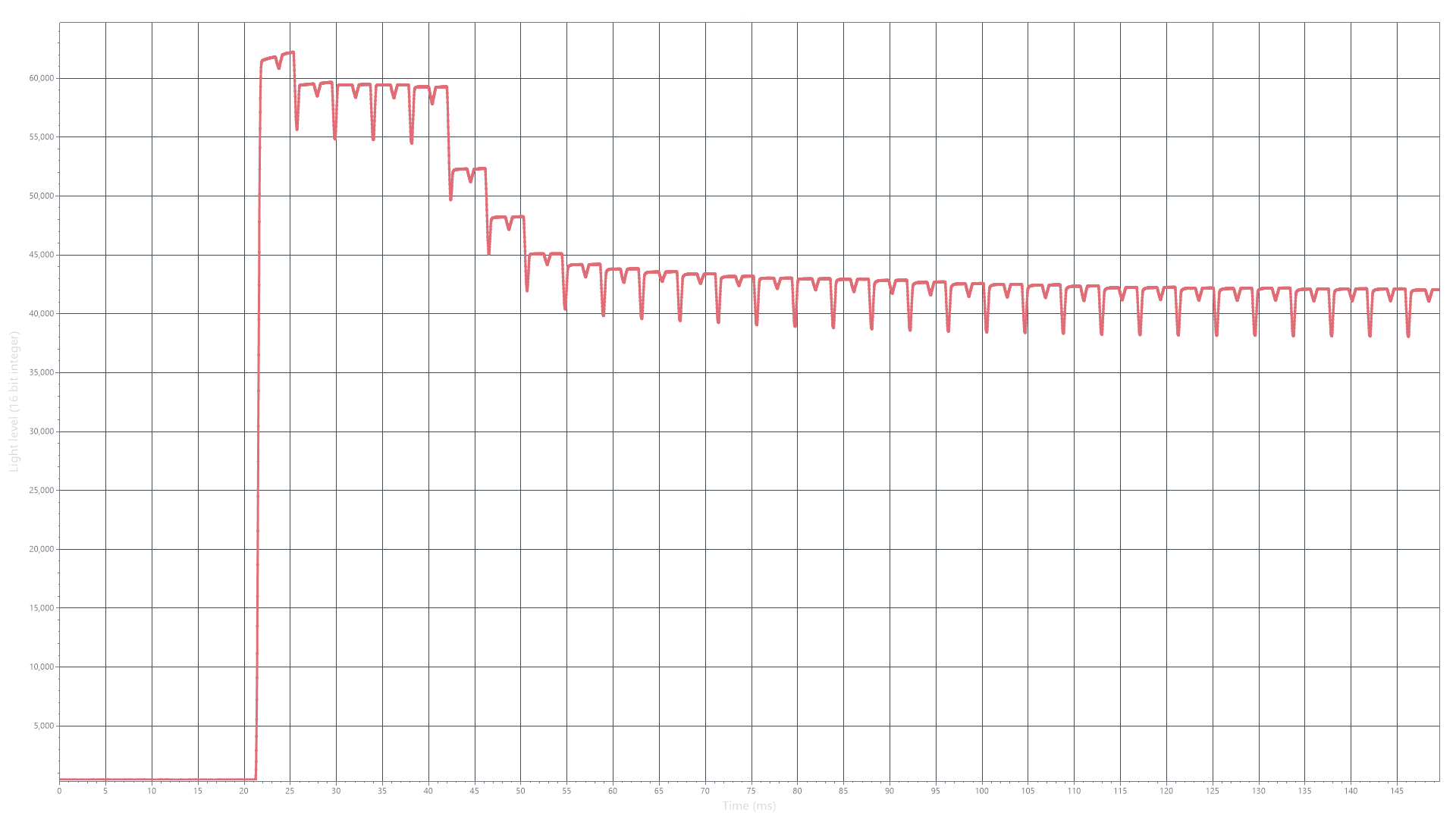
Why ABLs are a problem
The change in light level - after the fact, as it were - is a problem, because the definition of ‘response time’ is ‘change in light level over time’. That makes it rather hard to know if this is overshoot and should be counted, or not.
How to work around an ABL
ABLs are less aggressive (or functionally disabled) when only a small part of the screen is bright/changing brightness. By changing the window size of the test window, you can dramatically decrease how much the ABL affects the light level during the test. To do this:
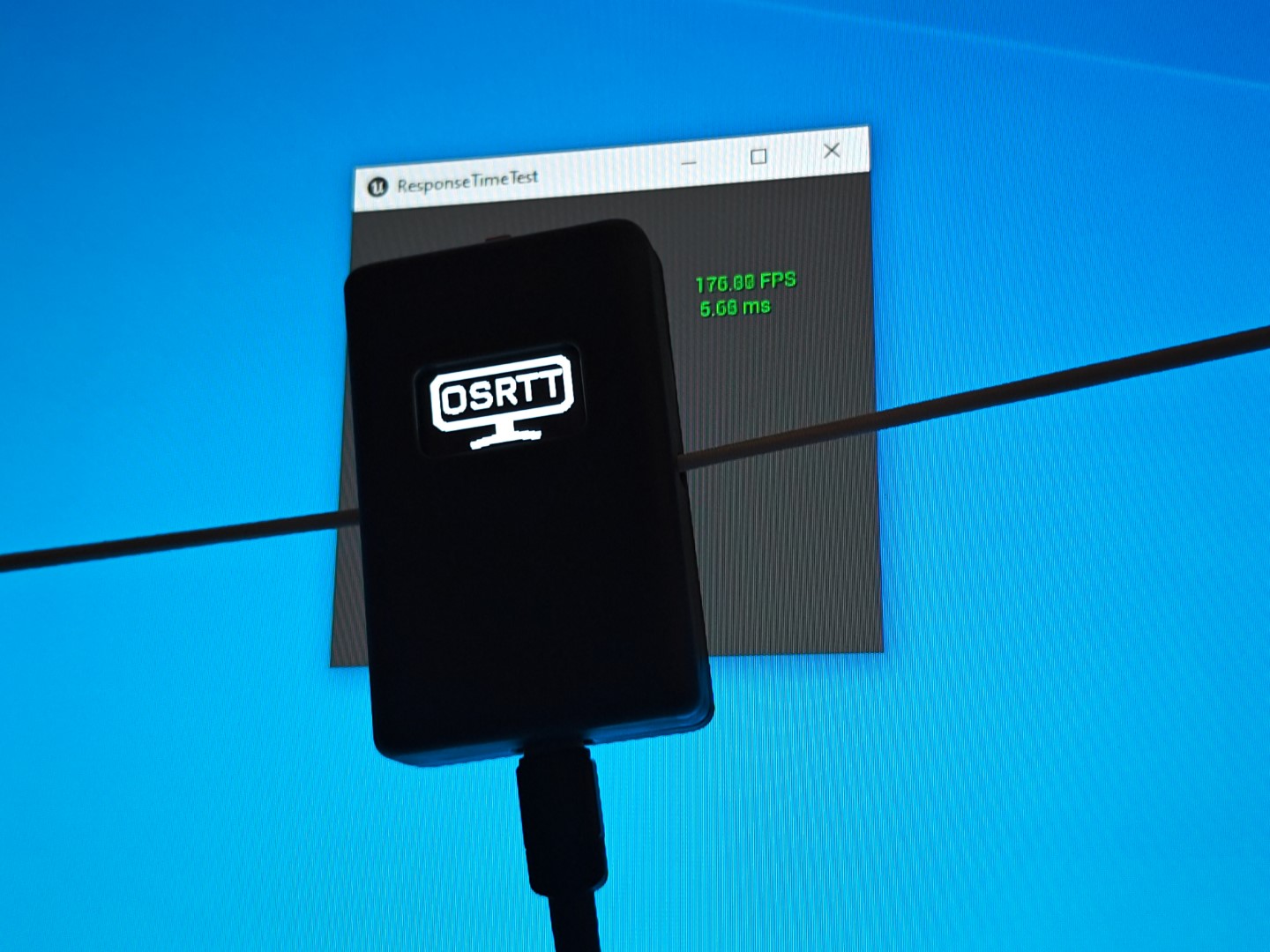
- When the UE4 test window opens AND BEFORE STARTING THE TEST VIA THE BUTTON ON THE TOOL (black screen with FPS counter on the right), hit “ALT” + “ENTER” on your keyboard. This will make the test window windowed instead of fullscreen.
- Resize the window to only just fit the footprint of the tool on screen (see image below)
- Then start the test as normal
Here’s how it should look: